Each time one of your tests or surveys are taken, only 1 credit is used. For example:
When you buy credits you get access to all upgraded account Features:
When you assign a test either by Group or Link, you will be provided with a number of customizable settings such as:
ClassMarker gives you the flexibility to modify and reuse tests and test settings as needed:
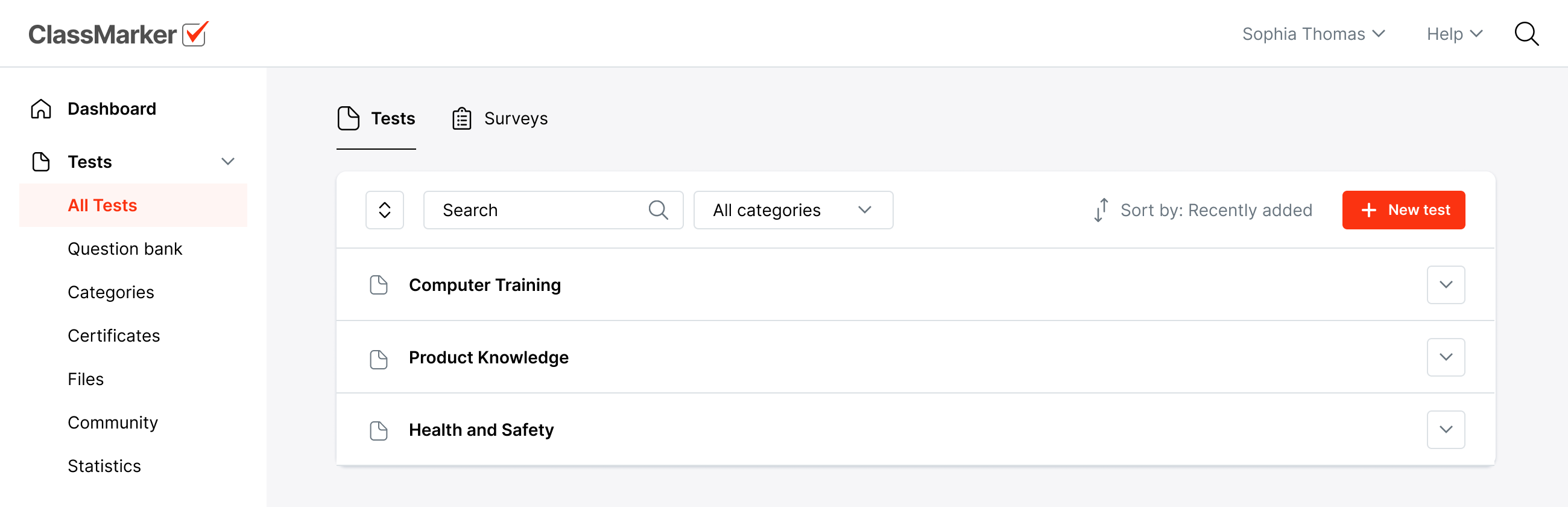
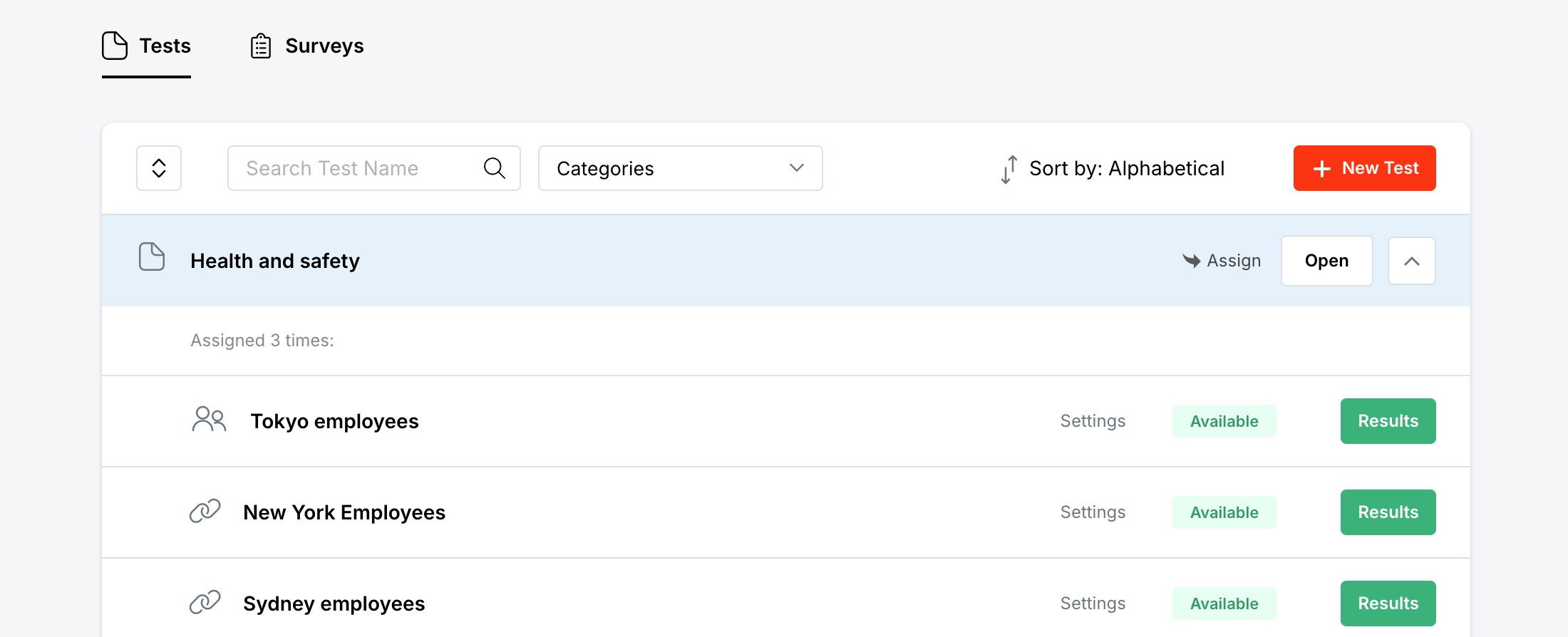
To edit the settings for your test go to the Tests section and open the row for your test and select 'Settings' next to the group or link you wish to edit.
You can enhance security and variety in your tests by randomly pulling questions from categories in your question bank.
With ClassMarker you can create tests with:
Tip: Combine random and fixed questions to give users consistent content with a fresh mix of questions each time they take a quiz. Add further customization by creating Question Bank categories with different levels of difficulty.
Yes, ClassMarker's Assistant feature lets you assign multiple administrator roles with different access permissions. Permissions include:
Managing test results: View, grade, delete results. Reopen finished Tests
Managing Users: Group members, access lists.
Managing content: Questions, categories, themes, certificates, files, Webhooks, API keys, account payments.
By delegating specific tasks to different Assistants, you can streamline your workflow and reduce the workload on any single individual.
See: How to Create Assistants
For the main administrator account:
For assistant accounts:
ClassMarker's allows you to duplicate Tests, questions, certificates, and assignment settings. Duplicate tests to make slight variations without affecting the original or to assign with different settings.
Duplicate a quiz:
Yes, ClassMarker's has been built to accommodate the testing needs of all our users. That's why we offer a multilingual student & Test taker interface with language options.
English is our default Interface language but you can create your Tests in 25 supported languages.
Review our: Language options
You can easily view Test takers, Names and emails, Score, percentage, Question statistics and each answer given.
You can also review recent results that are still in progress in real time.
Review our: Viewing results
Yes you can create customer certificates for Test takers to download in real time with their Name, test name, Score and other details you optionally require.
You can also choose to only give Certificates if a User passes their exam.
Review our: Custom certificates
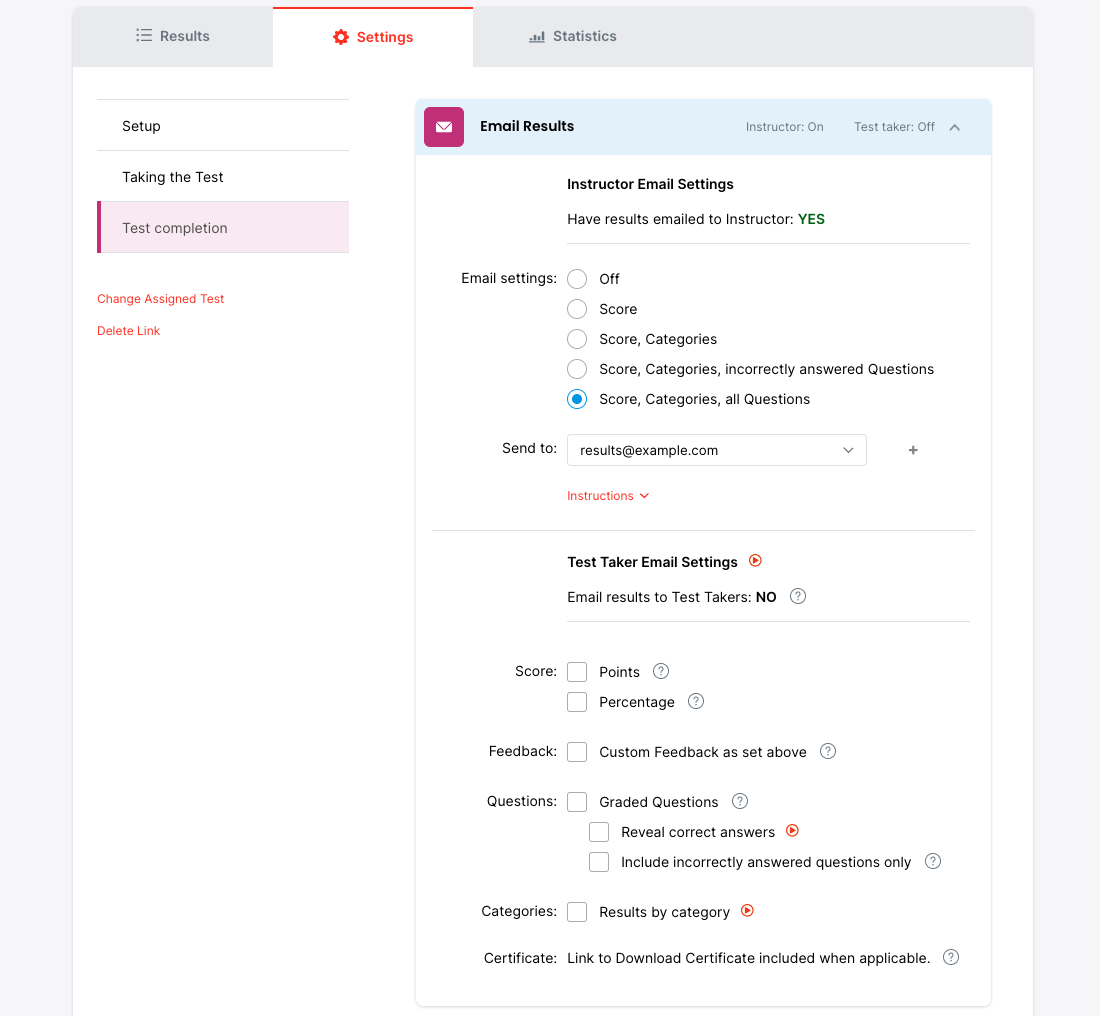
For each Test or Survey assigned to a Groups or Links, you can choose to send the results via email to:
Note: The registered email address must be verified in order to receive these emails. Verify your email address by going to the My Account page, expand the section titled 'View and edit my details' and select the link 'Send verification email' (this link will only be displayed for unverified email addresses). An email will be sent to your email address, select the link provided to complete the verification process.
You need to add the email to the Assistants section
Note: ClassMarker will send a verification email to that address. The email must be verified before it can be selected to receive test results.
After the email is verified, you can edit the test's assignment settings for the Link or Group it is assigned to, and select to have results sent to that email address.
Results can be sent to up to 4 email addresses. Or, you can choose to have results sent to 1 specific email address that you control, which can be set to forward emails to as many recipients as you require.
For more details on managing administrator roles and permissions, view the full ClassMarker Assistants User Manual.